AMCMitra User Guide
For business owners and technicians. Version 0.1, October 2026.
AMCMitra helps a service business keep track of customers, their machines, contracts, visits and bills, all on the phone.
This guide has five parts:
- Getting started: for everyone
- For owners: customers, contracts, schedule, bills and team
- For technicians: your visits, step by step
- Your account: help, contact and deleting your account
- Tester checklist: what to try over 14 days
Part 1: Getting started
1. Log in
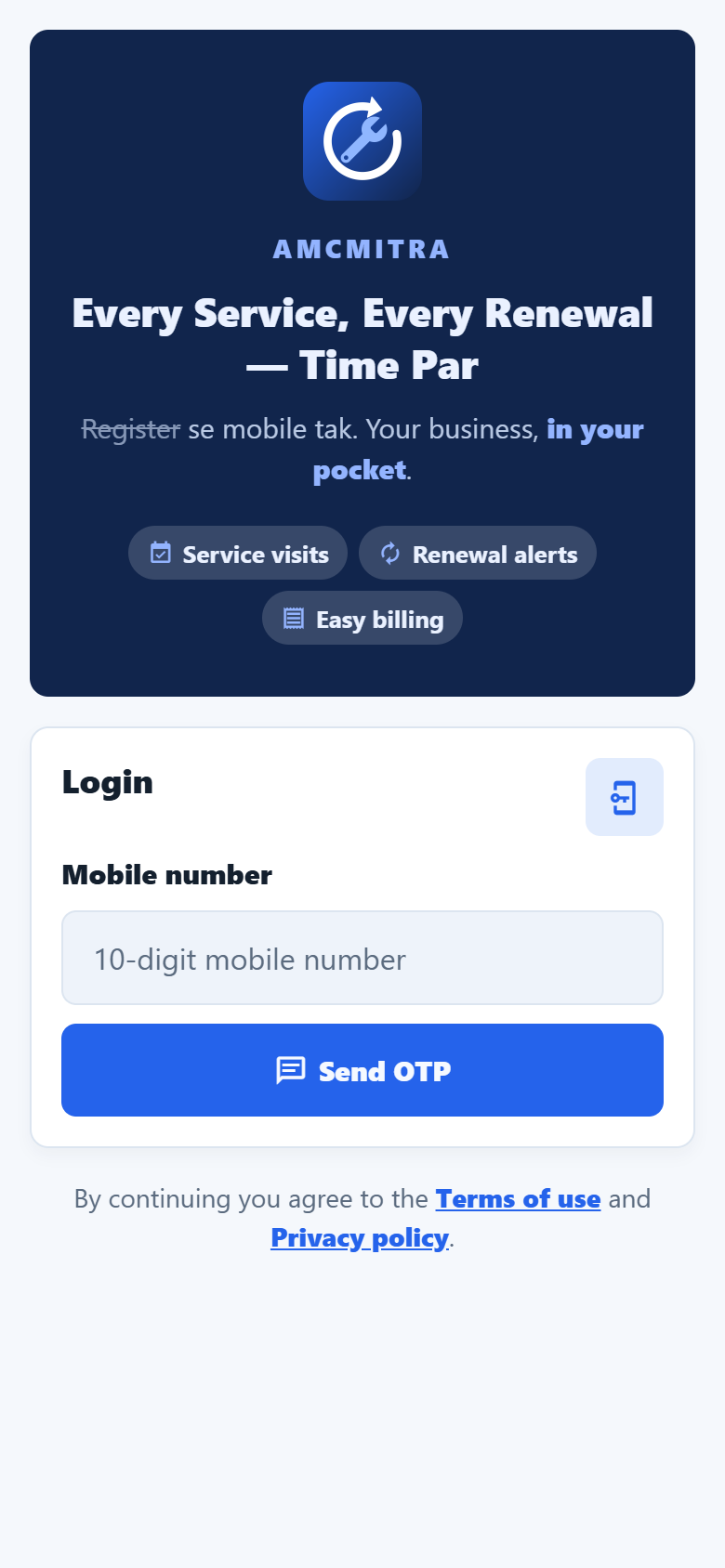
- Open AMCMitra.
- Type your 10-digit mobile number.
- Tap Send OTP.
- You get a code on WhatsApp from MiniMoth, our login partner. If WhatsApp does not work, it comes by SMS.
- Type the code and tap Login.
2. The first-time tour
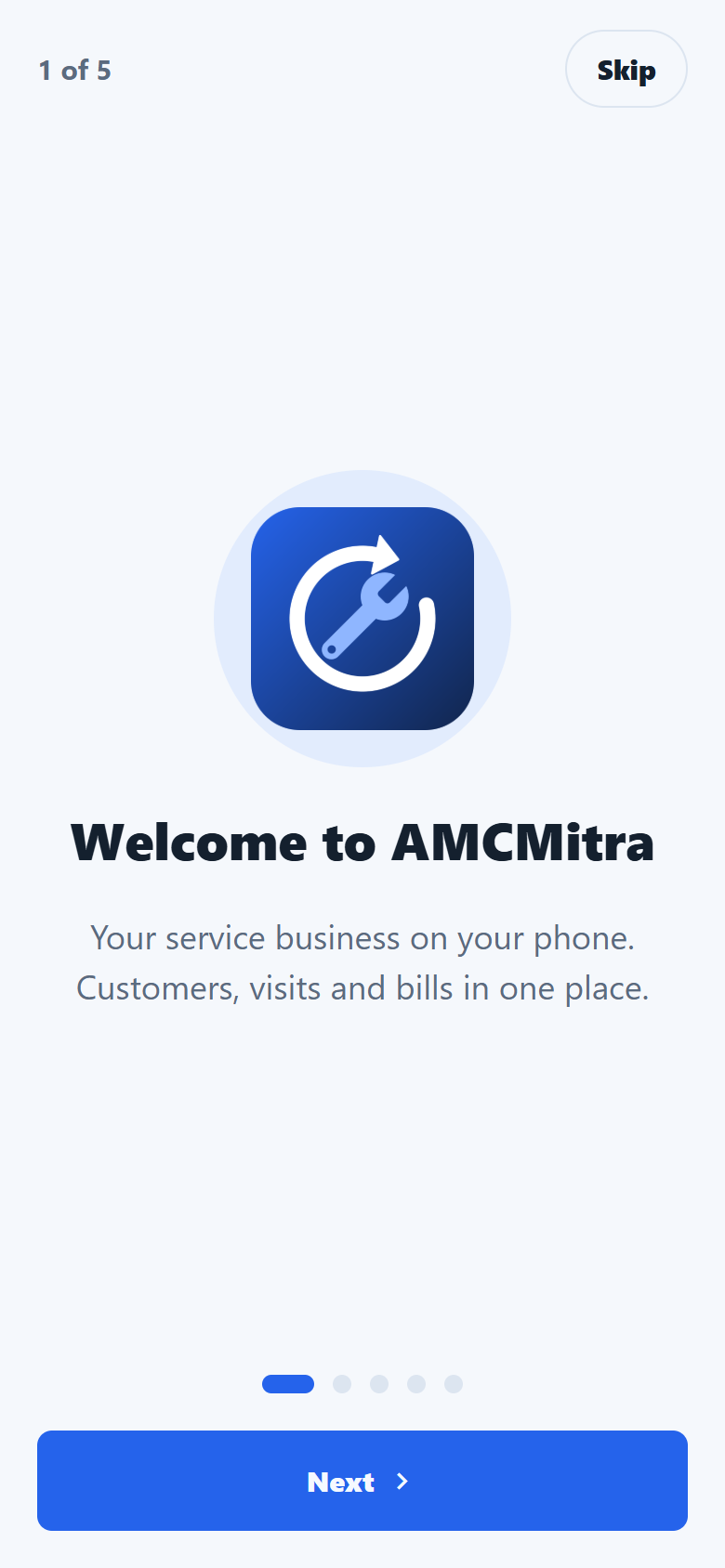
The first time you open the app, a short tour shows what the app does. Tap Next, or Skip to close it. You can see it again any time from More → Help → How to use the app.
3. Set up your business (owners, first time only)
After your first login, the app asks for:
- Business name: shown on your bills
- Your name: required
- City
GST number, address and logo are optional. You can add them later in More → Business Profile.
Part 2: For owners
4. Today
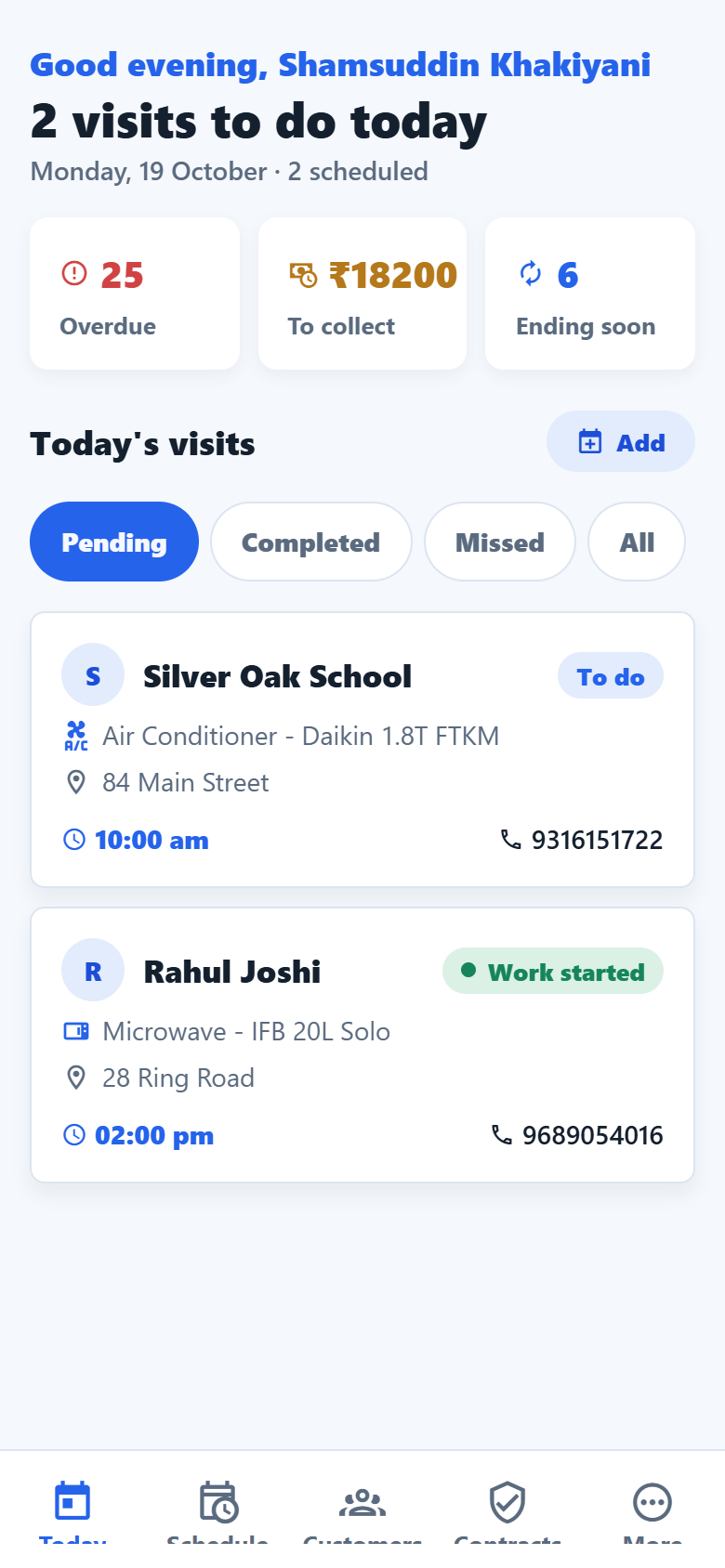
This is the first screen every day.
- Overdue: visits that are late
- To collect: money customers still have to pay. Tap it to see the bills.
- Ending soon: contracts that end within 30 days. Tap it to see them.
- Today's visits: tap a visit to open it.
5. Customers
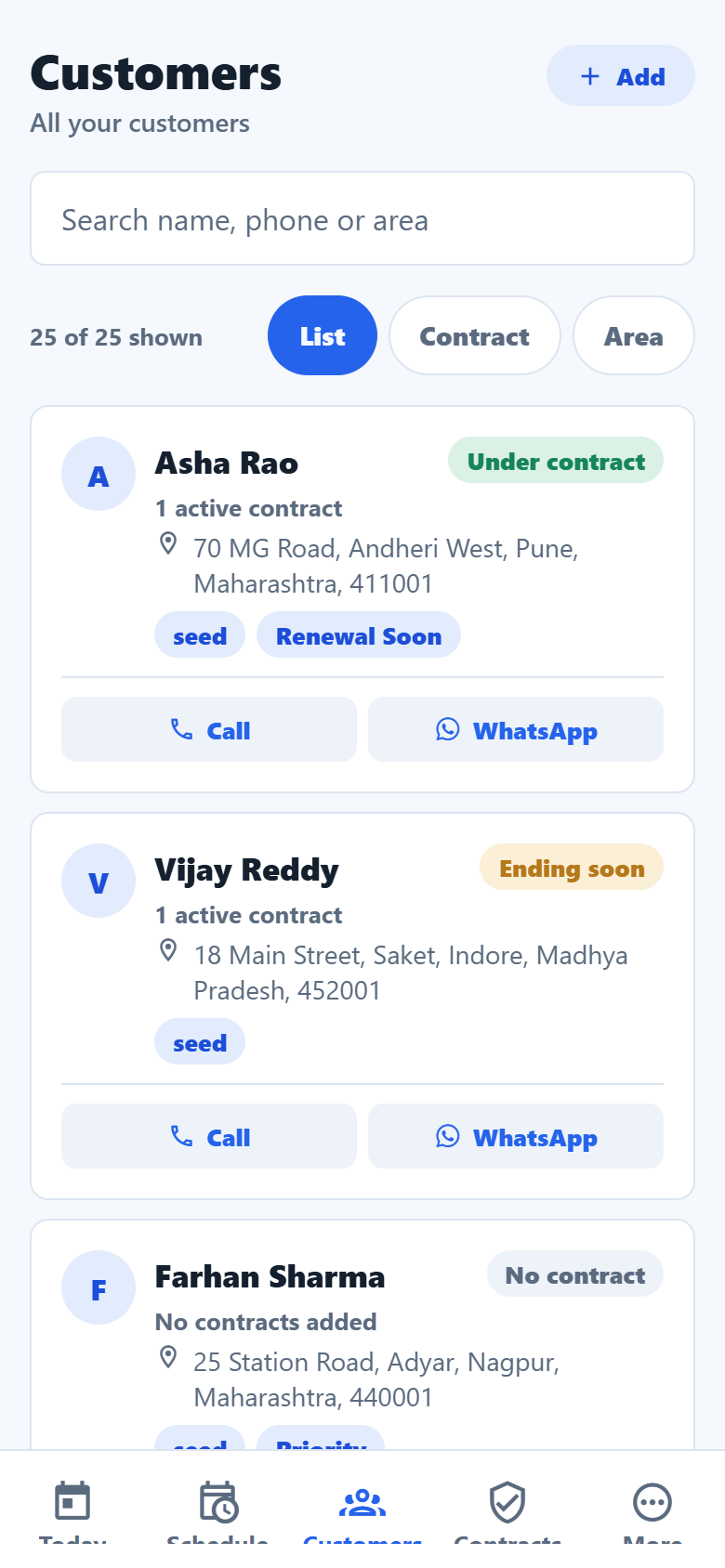
Tap Customers at the bottom. Use the search box to find a customer by name, phone or area. Tap Call or WhatsApp to contact them.
6. Add a customer
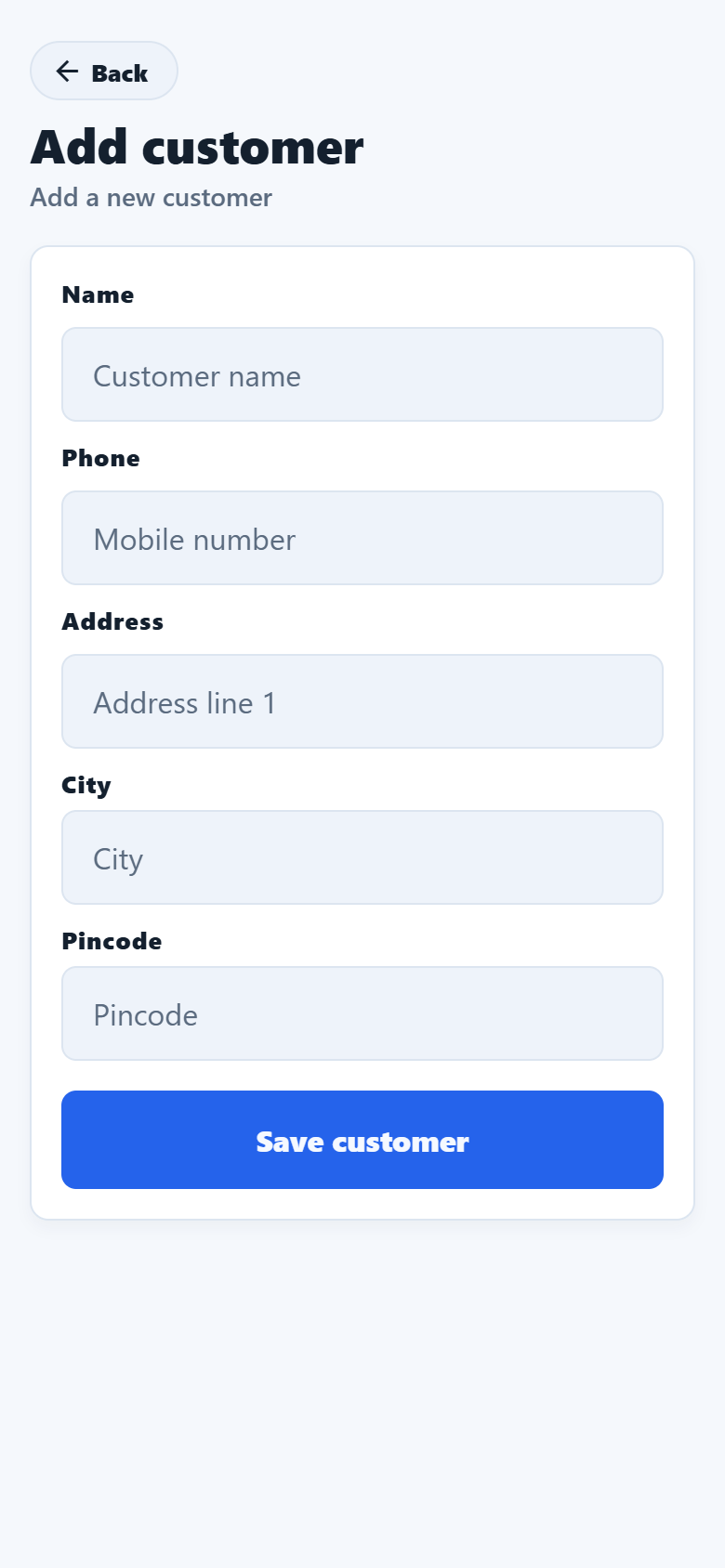
- On Customers, tap Add.
- Type the name and mobile number. Address, city and pincode help the technician find the place.
- Tap Save customer.
7. A customer's page
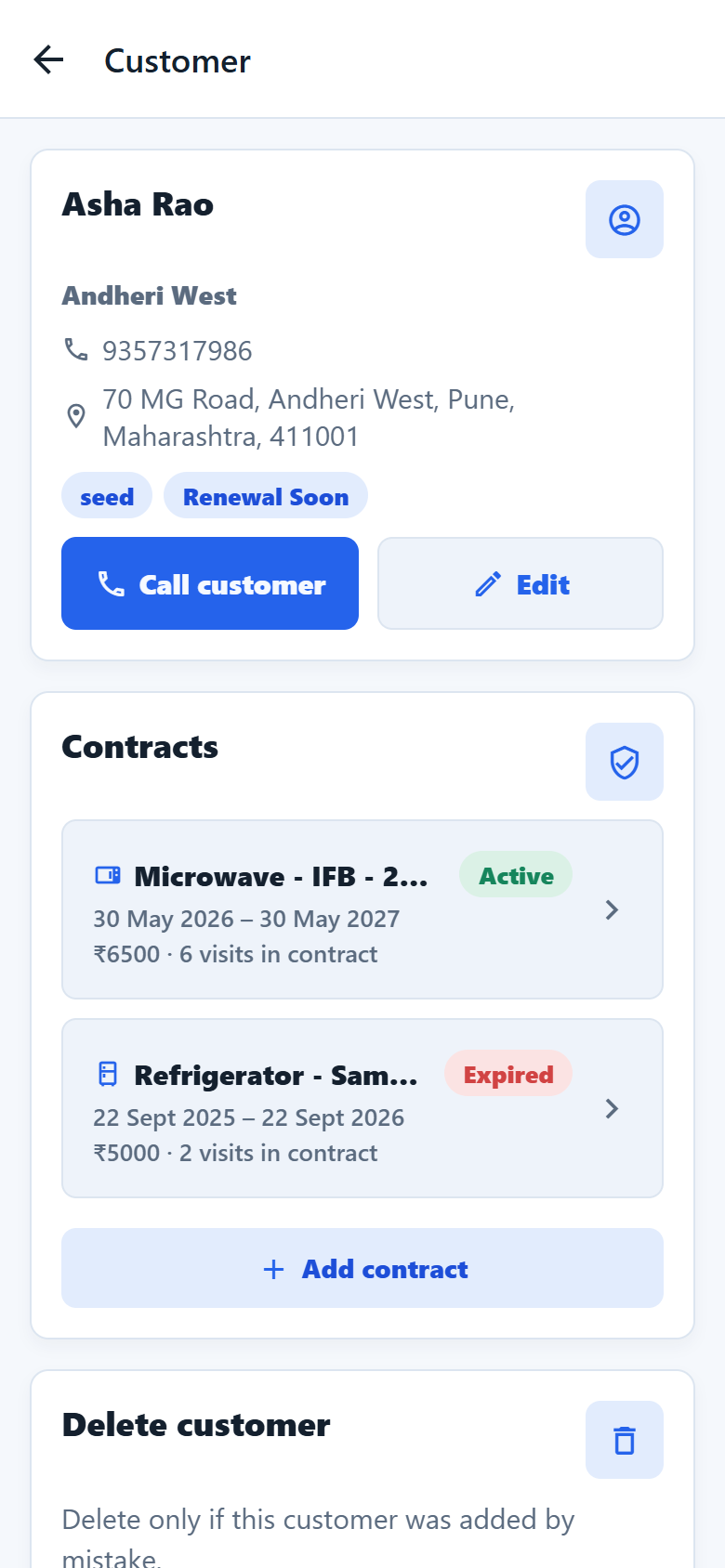
Tap a customer to see their details and all their contracts. From here you can Call, Edit, or Add contract.
8. Add a contract
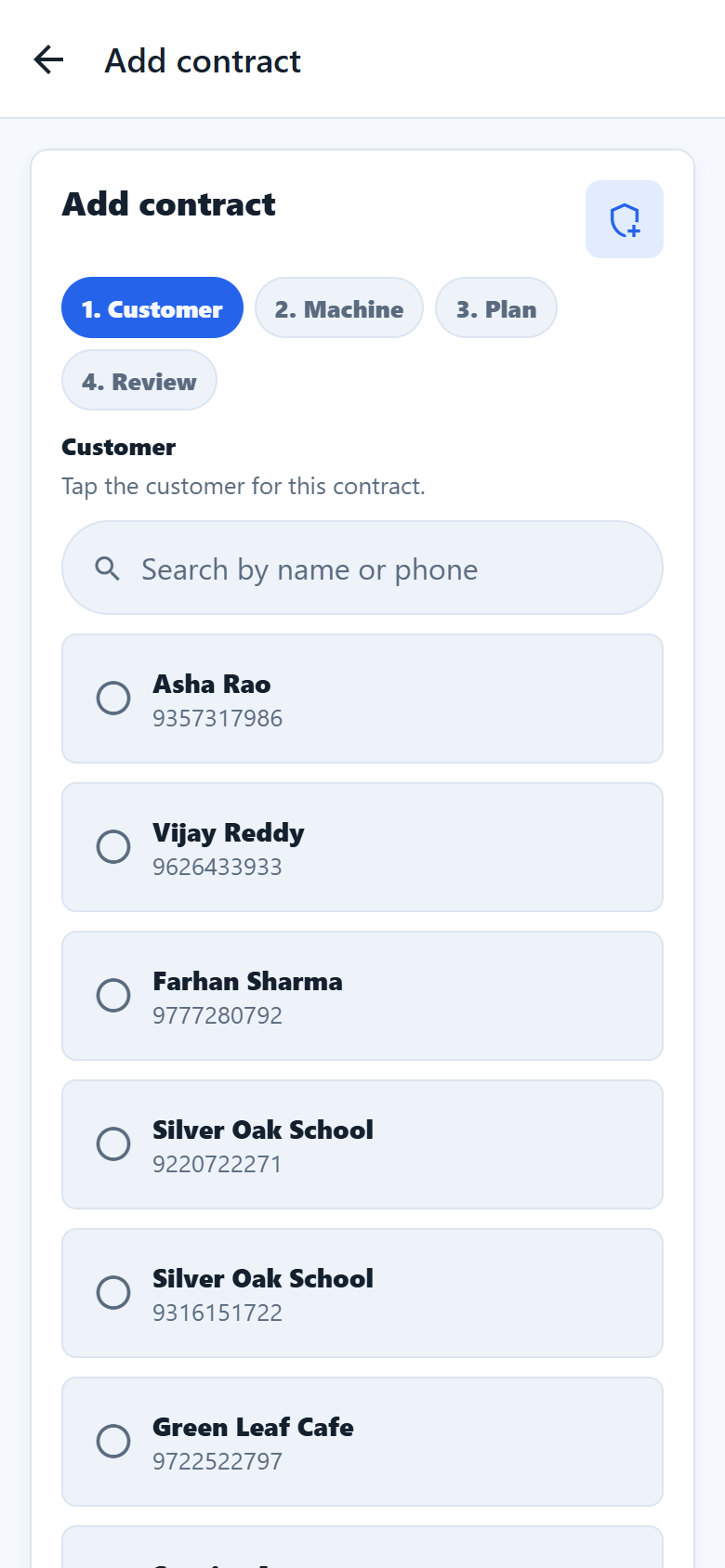
A contract has four short steps:
- Customer: tap the customer.
- Machine: tap the type (AC, fridge, water purifier...), then choose or type the brand and model.
- Plan: start date, end date, number of visits in the contract, and price.
- Review: check and tap Save.
The app plans all the visits for the year by itself. You can make a bill for the contract when you save it.
9. Contracts and renewals
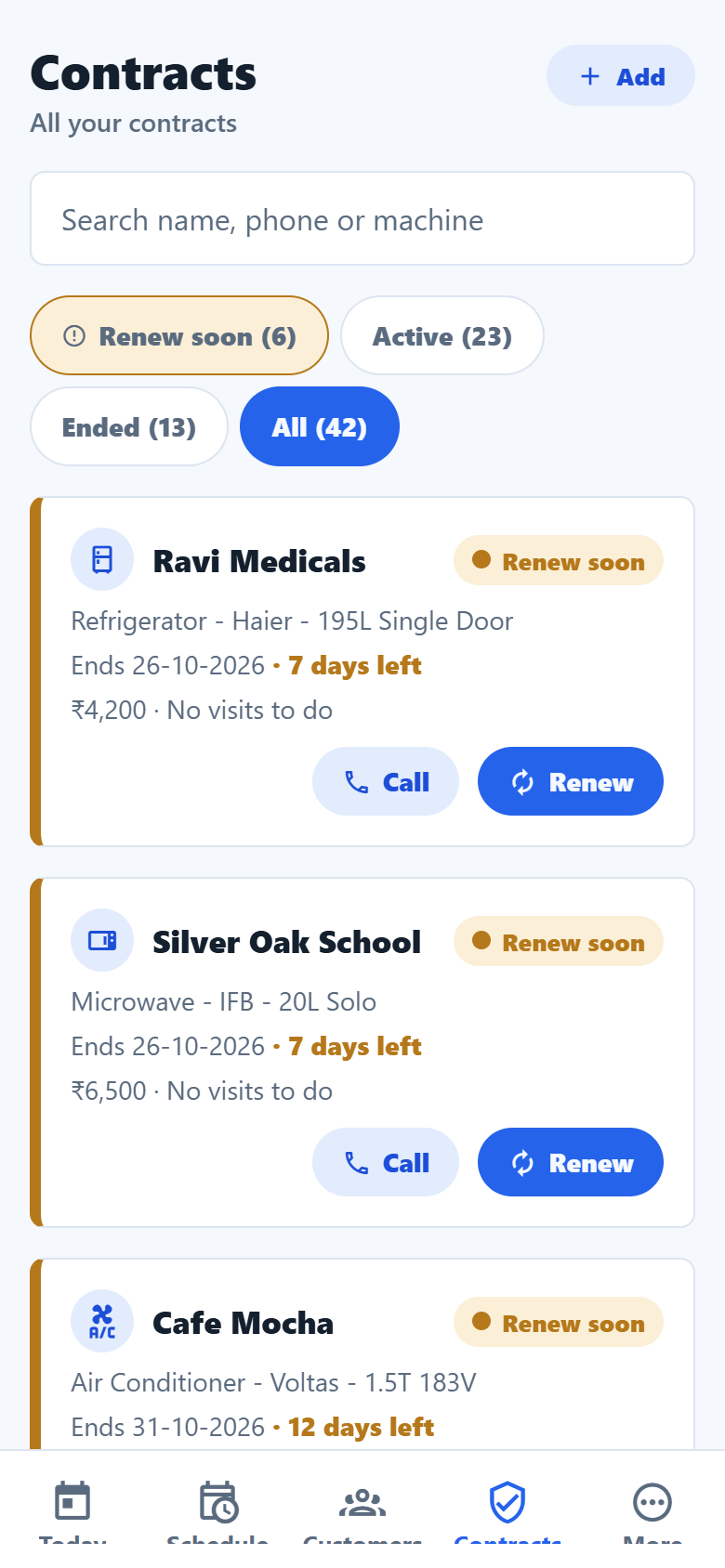
Tap Contracts at the bottom. The colour on the left of each card shows its state:
| Colour | Label | Meaning |
|---|---|---|
| Orange (blinking dot) | Renew soon | Ends within 30 days |
| Green | Active | More than 30 days left |
| Red | Ended | Ended and not renewed |
| Grey | Renewed | Ended, and a new contract was made |
Use the buttons at the top to see only Renew soon, Active or Ended contracts. On cards that need renewing, tap Call to talk to the customer, then Renew to make the new contract. The details are filled in for you.
10. A contract's page
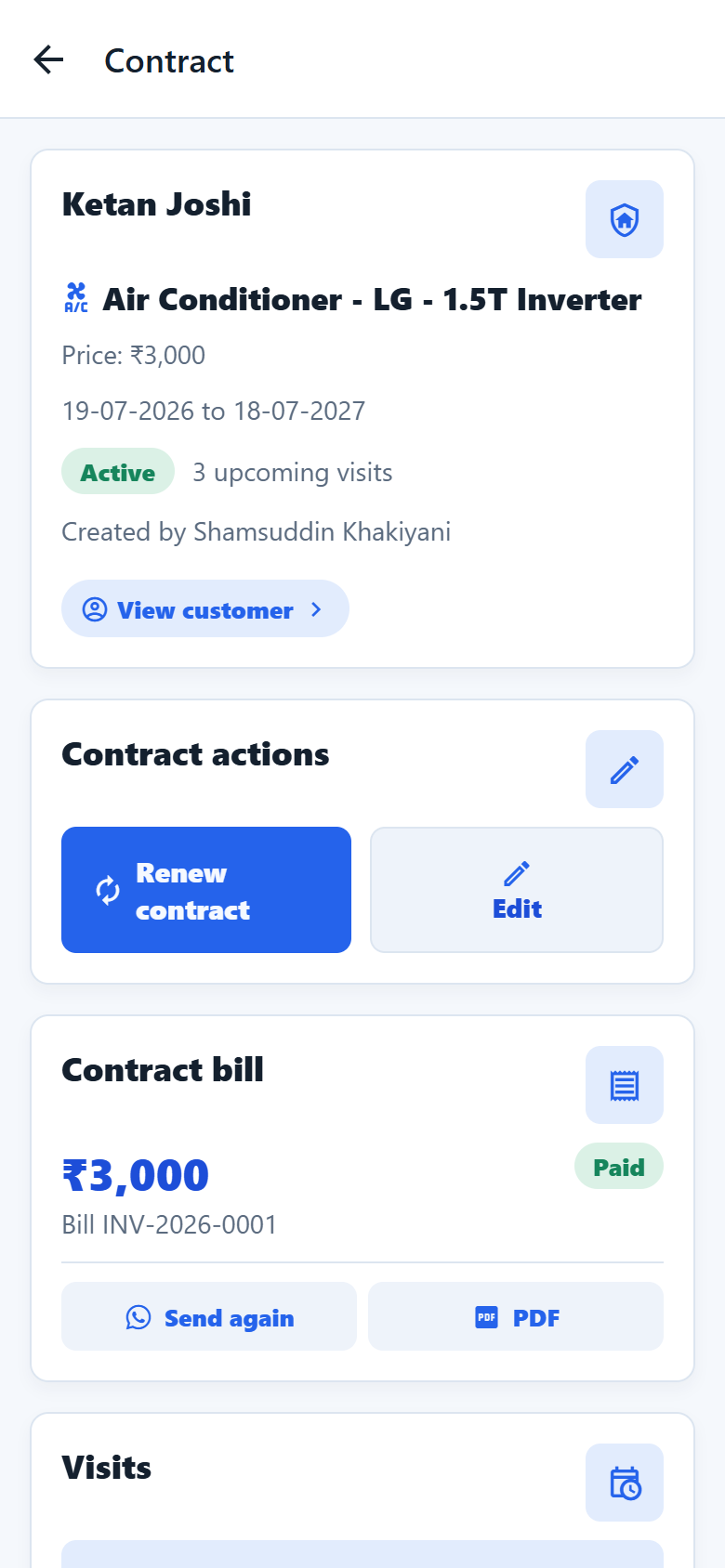
Shows the machine, dates, price and every visit. From here you can Renew contract, Edit it, and see or send its bill.
11. Schedule
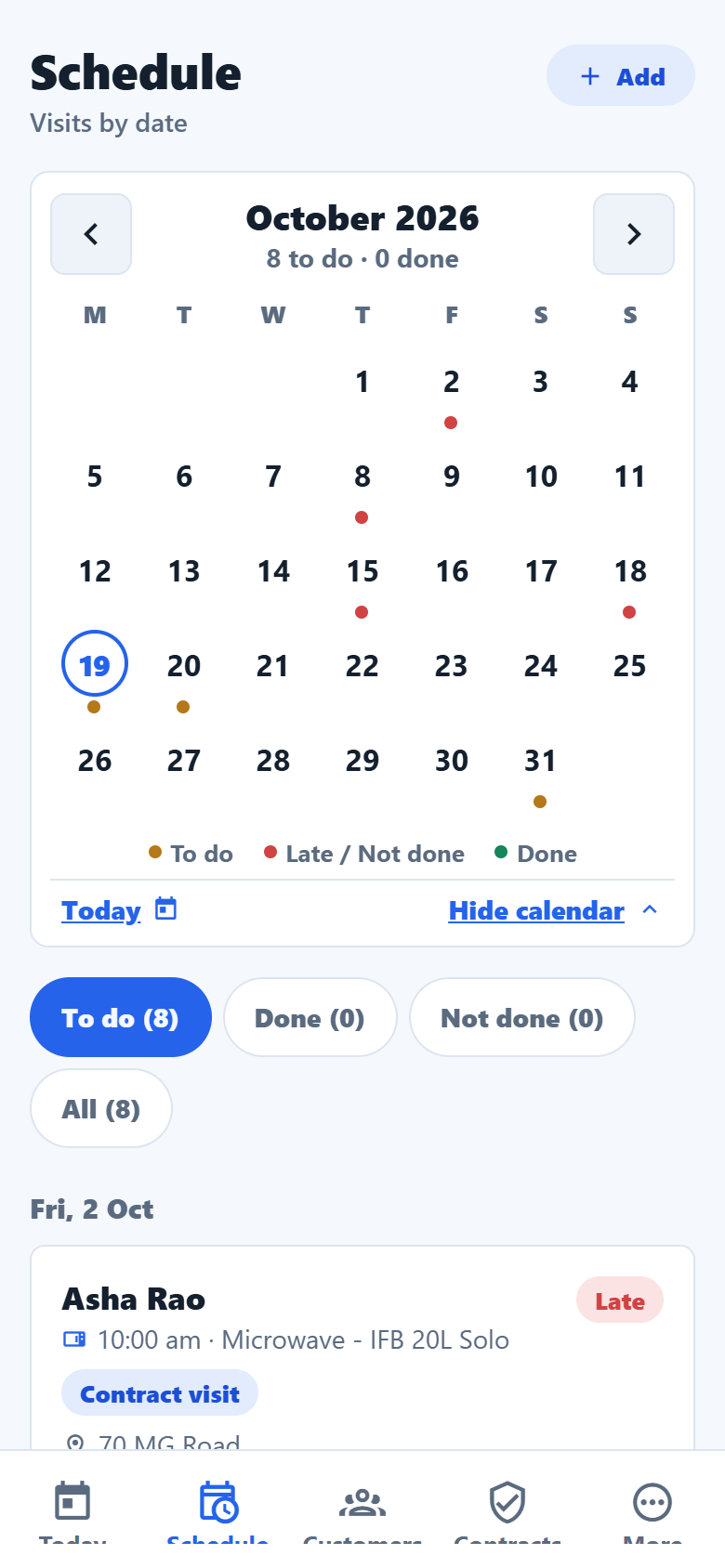
Tap Schedule at the bottom.
- The calendar shows the month. Dots under a date mean visits: orange = to do, red = late or not done, green = done.
- Below the calendar is the list of visits, grouped by date.
- Tap a date to see only that day. Tap it again, or Show whole month, to see all.
- Use To do, Done, Not done or All to filter the list.
- Hide calendar folds the calendar away; Show calendar brings it back.
- Today jumps back to today.
- Add (or Add visit for this day) books an extra visit.
12. A visit (owner view)
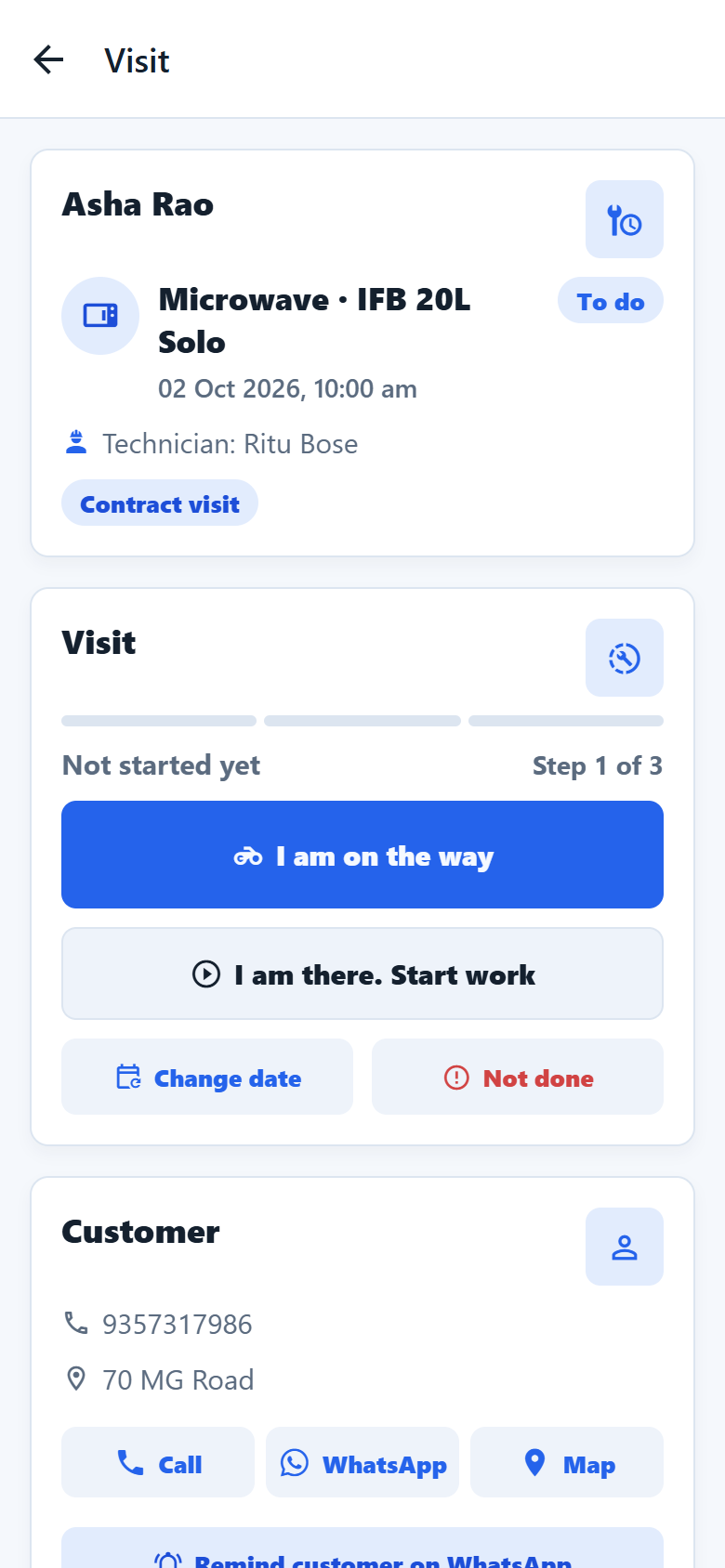
Tap any visit to open it. You can see who is doing it, call or WhatsApp the customer, open the address in Maps, and send a reminder.
Under Technician, choose who will do the visit. Choose Me to do it yourself, then tap I will do this visit. The steps of the visit itself are in Part 3.
13. Bills and payments
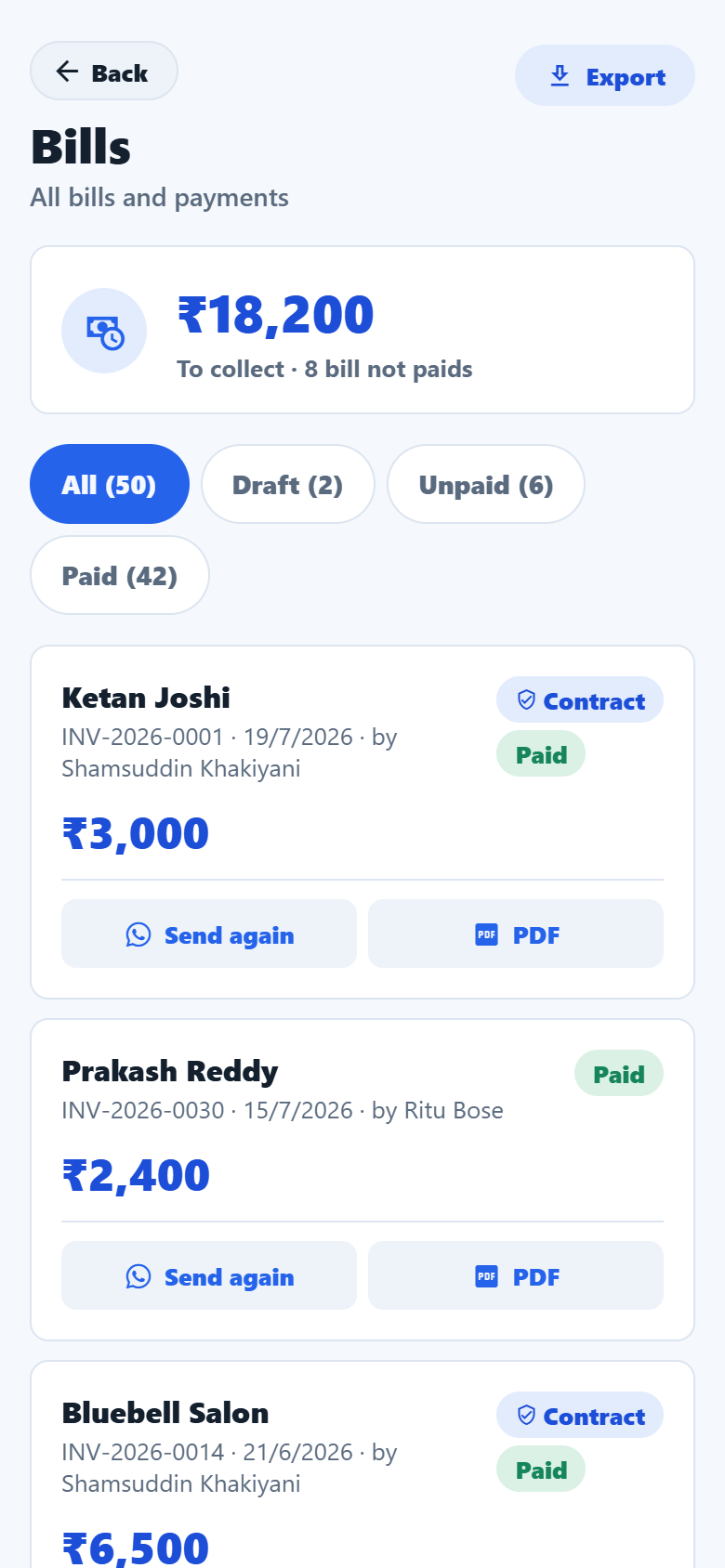
Open More → Bills to see all bills. To collect at the top is the money still to be paid.
- Make a bill: after a visit is finished, open it and tap Make bill. Add items (visit charge, gas filling, parts...).
- Send: shares the bill PDF on WhatsApp.
- Take payment: type the amount and how it was paid (cash, UPI...). Part payments are fine. A fully paid bill gets a PAID stamp on the PDF.
- Export (owners): download bills between two dates for your CA, for GST.
14. Your team
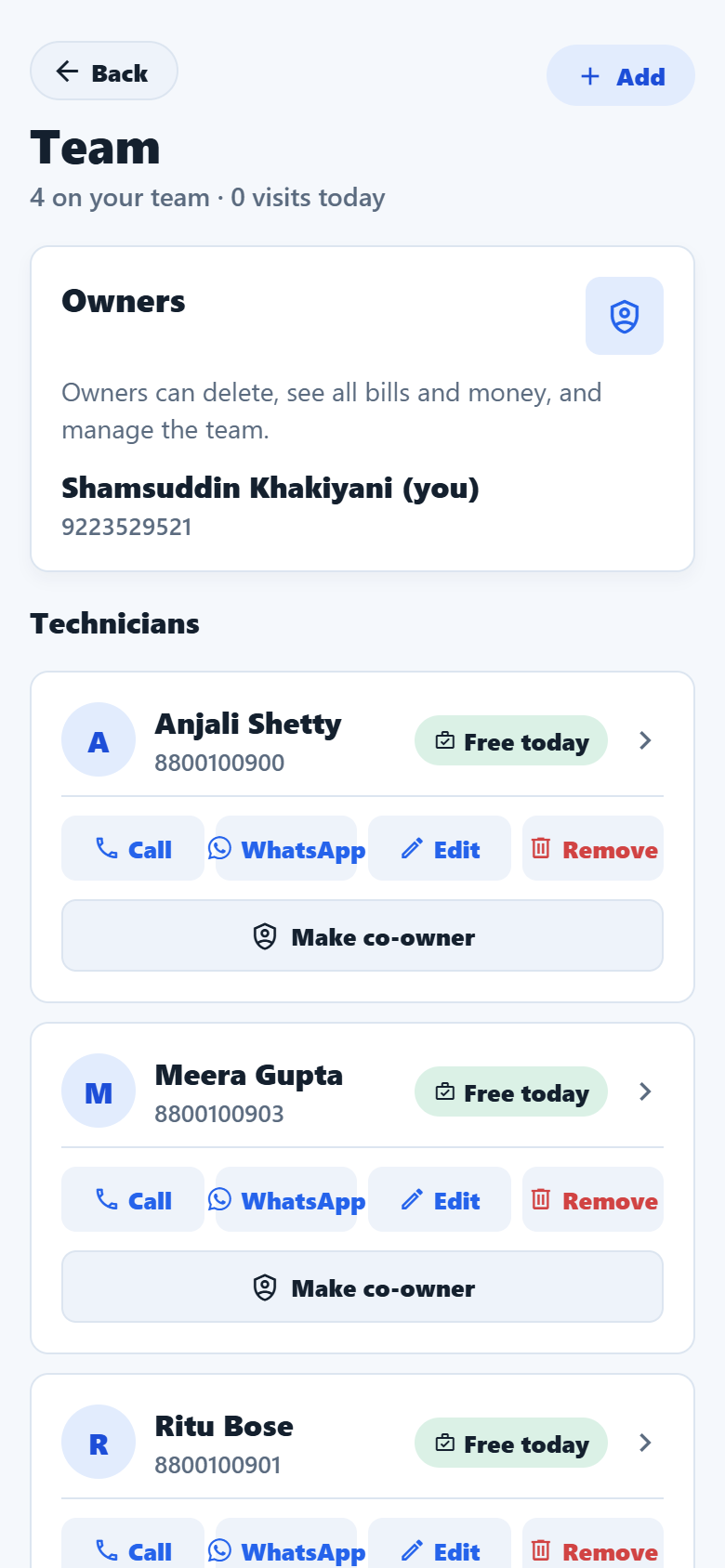
Open More → Team.
- Add a technician with their name and mobile number. They log in with that number.
- Make co-owner gives someone the same rights as you. Make technician takes them back.
- Technicians see only their own visits. They cannot delete customers or contracts, or see money reports.
15. Business profile
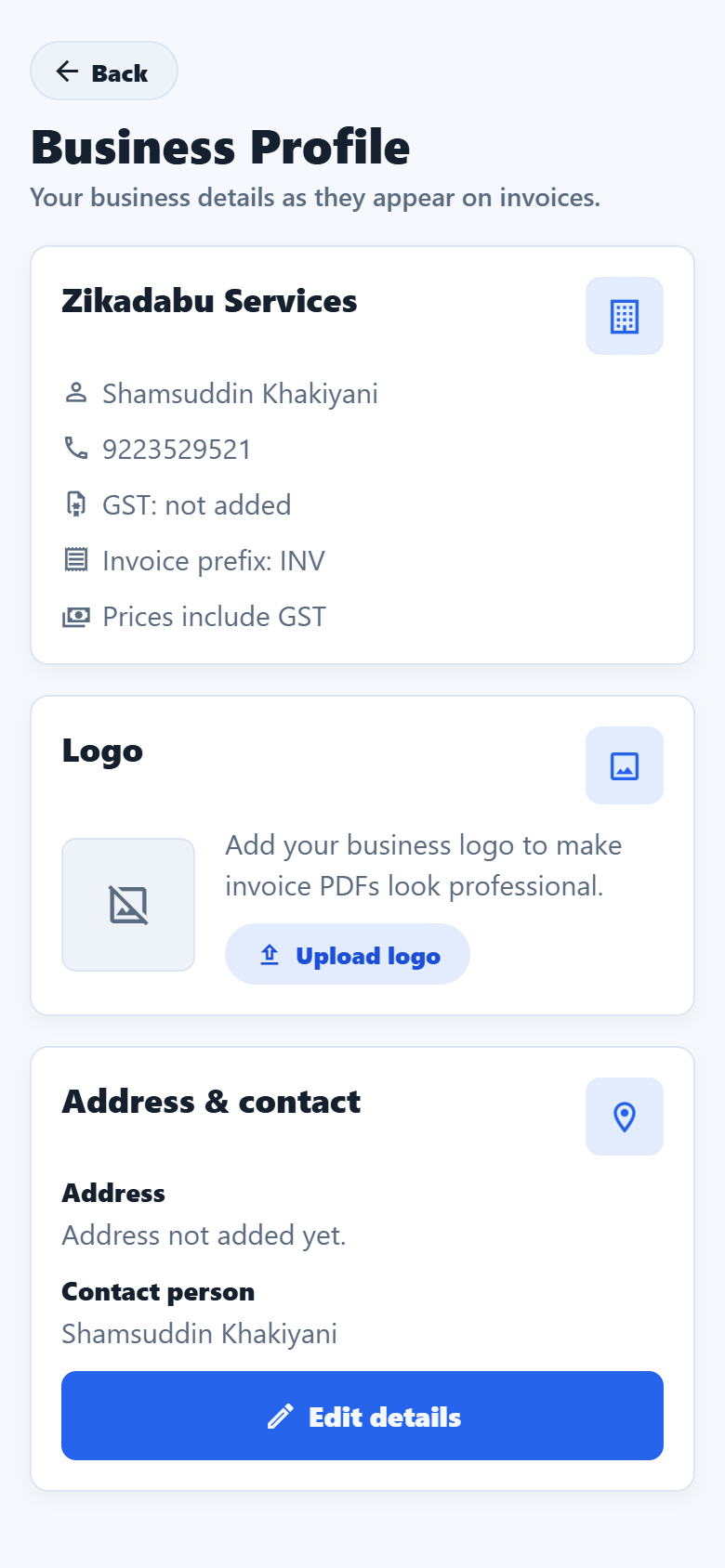
Open More → Business Profile to change your business name, address, GST number, and whether prices include GST. Add your logo to show it on every bill.
16. Problems reported
If a technician finds something wrong (for example a customer added twice), they report it. You see it in More → Problems reported and decide what to do.
Part 3: For technicians
17. My visits
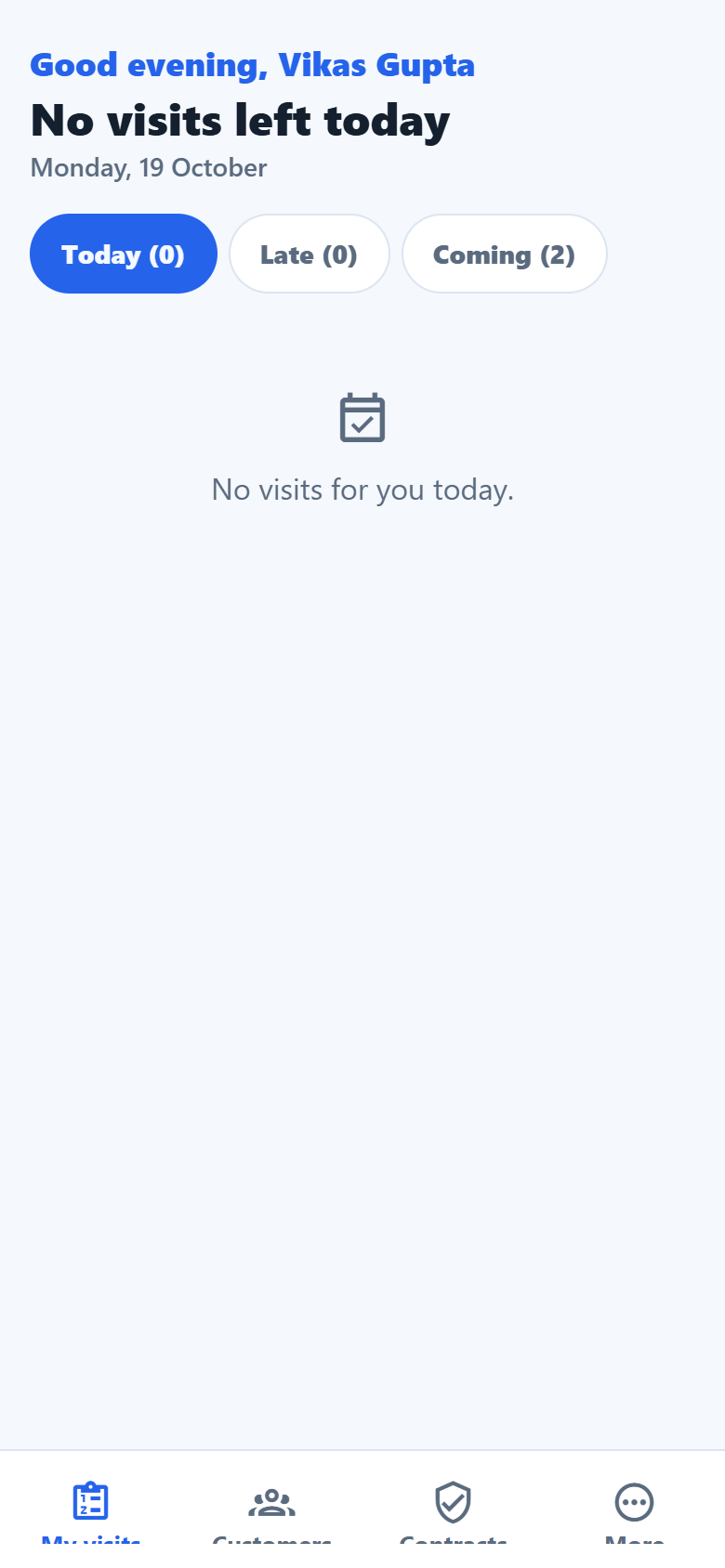
When you log in you see only your visits:
- Today: visits for today
- Late: visits whose date has passed and are not done yet
- Coming: visits in the next days
Tap a visit to open it.
18. Doing a visit, step by step
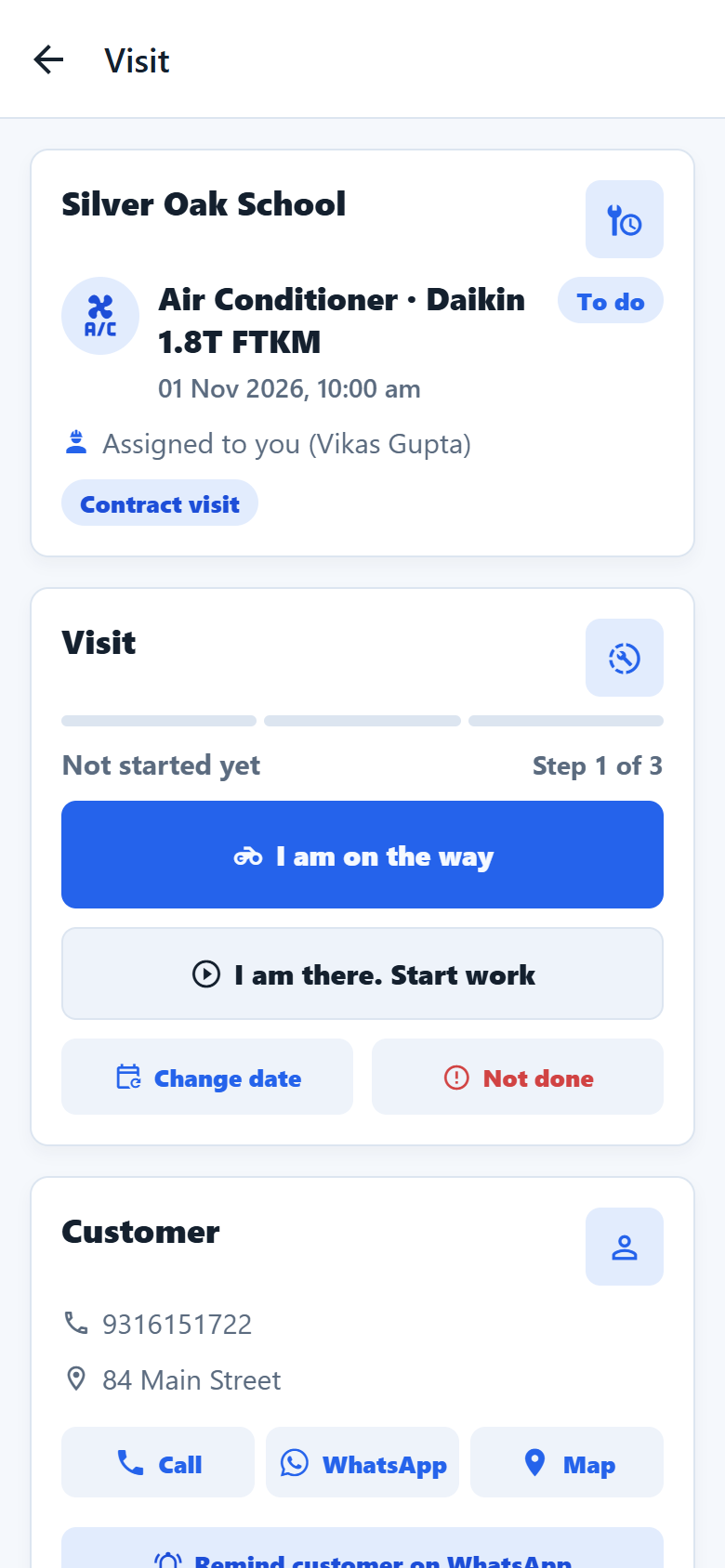
- Tap I am on the way when you leave. The owner can see you are on your way.
- At the customer's place, tap I am there. Start work.
- When the work is done, under Work done tap what you did (for example Cleaned, Gas filled, Part changed). You can also type a note.
- Add photos before and after the work, if you can.
- Tap Finish visit. The app asks you to confirm.
Other buttons on the visit:
- Change date: the customer wants another day. Pick a date and a time (Morning, Afternoon, Evening).
- Not done: the visit could not happen (for example, nobody was home).
- Book next visit: after finishing, if a part must be fitted later.
- Make bill and Take payment: for paid visits, after finishing.
Part 4: Your account
19. Help, contact and deleting your account
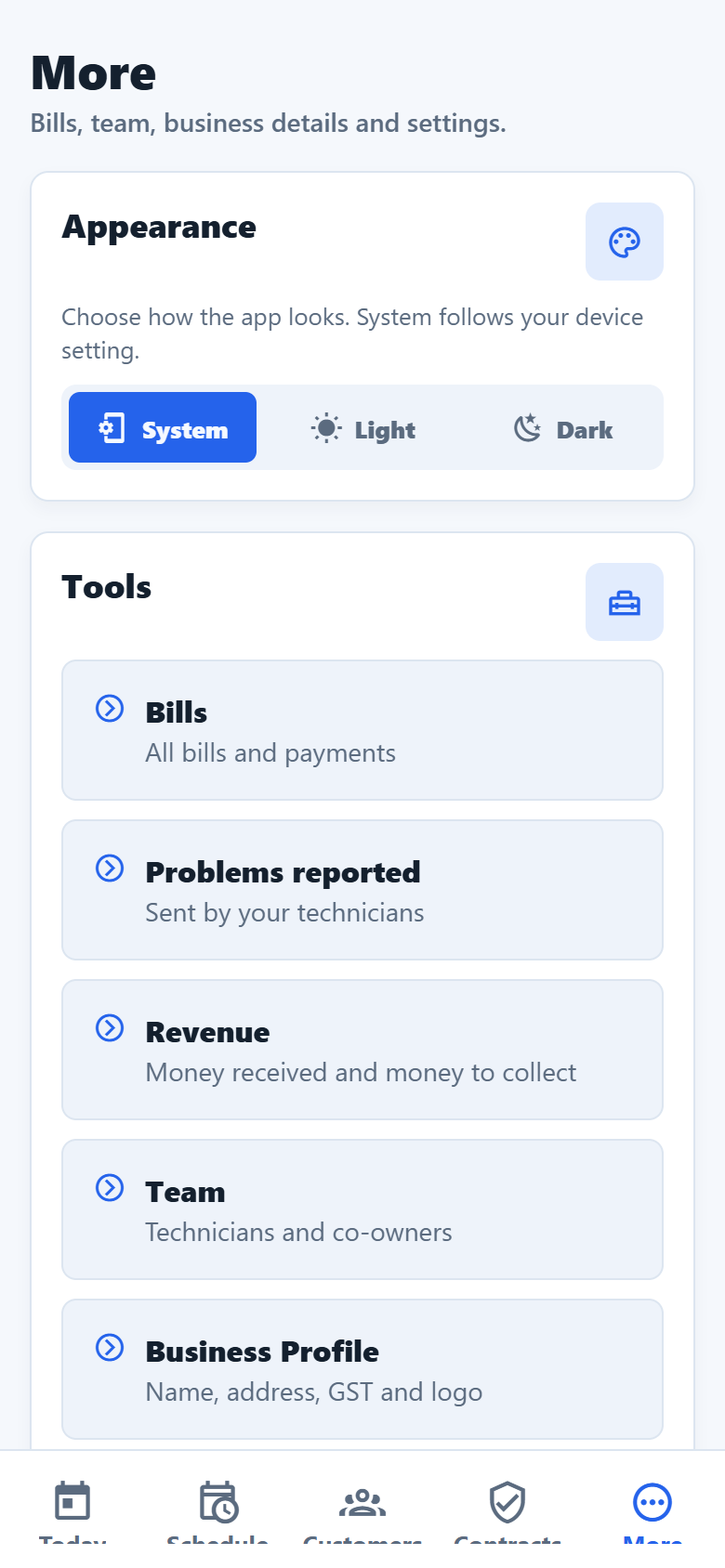
Open More:
- Appearance: light or dark screen.
- Help → How to use the app: the short tour again.
- Help → About AMCMitra: contact details, Terms of use and Privacy policy.
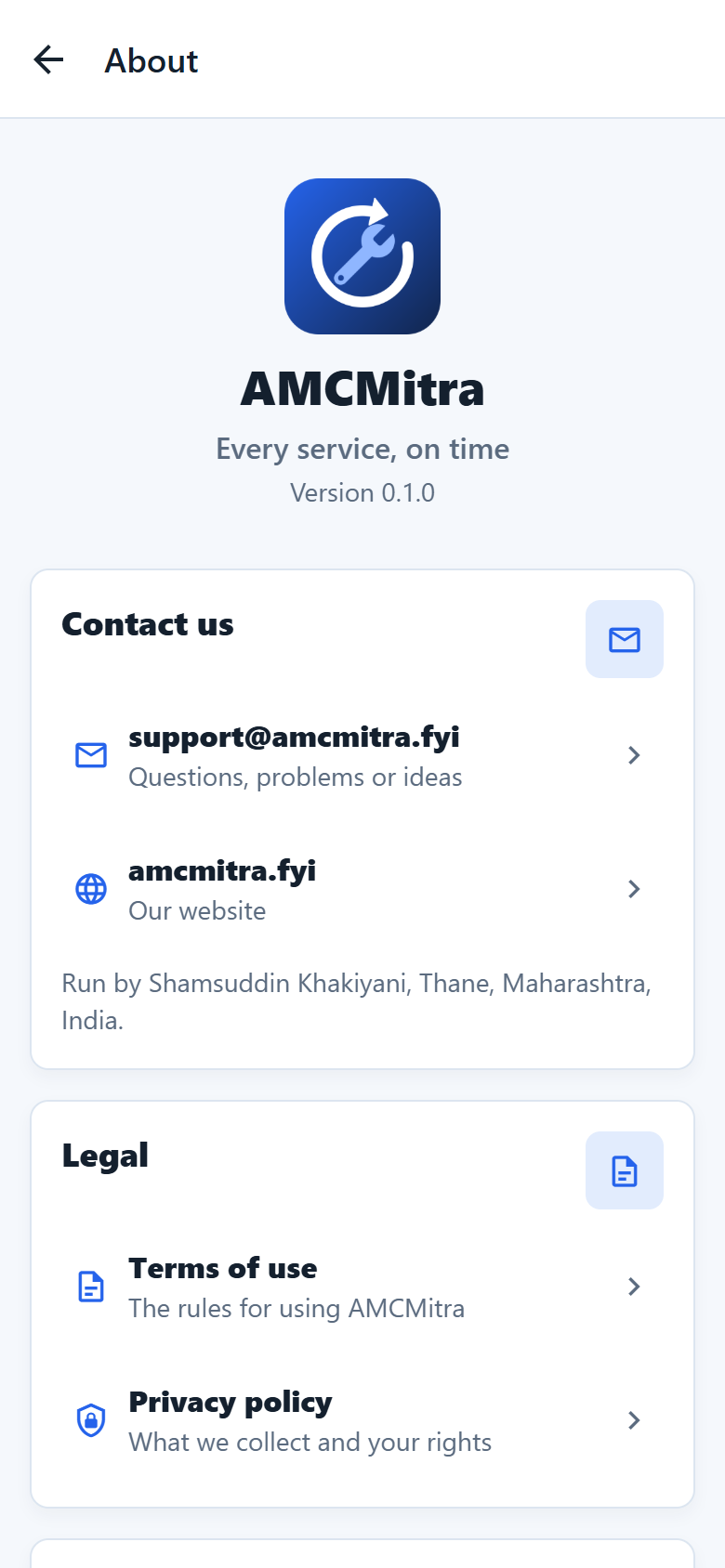
Contact us: support@amcmitra.fyi
Delete my account: More → About AMCMitra → Delete my account. You get an OTP to confirm.
- A technician, or an owner whose business has another owner, deletes only their own account.
- The last owner deletes the whole business: customers, contracts, visits, photos and bills. Download any bills you need first.
Sign out: More → Sign out.
Part 5: Tester checklist
Thank you for testing AMCMitra. Please use the app a little every day for 14 days. Here is a plan. Write down anything that is confusing, slow or wrong, with the screen name, and send it to support@amcmitra.fyi.
| Day | Try this |
|---|---|
| 1 | Log in. Watch the tour. Set up your business. |
| 2 | Add 3 customers. Search for one. Call or WhatsApp from the list. |
| 3 | Add a contract for each customer. Use different machines. |
| 4 | Open Schedule. Tap dates. Hide and show the calendar. Try the filters. |
| 5 | Add a technician (use a second phone if you have one). Give them a visit. |
| 6 | As the technician (or yourself): do a visit from I am on the way to Finish visit. Add a photo. |
| 7 | Make a bill for a finished visit. Send it on WhatsApp. Take a part payment. |
| 8 | Take the rest of the payment. Open the bill PDF and check the PAID stamp. |
| 9 | Change the date of a visit. Mark one visit Not done. |
| 10 | Add a contract that ends within 30 days. Find it in Contracts → Renew soon and Renew it. |
| 11 | Edit your Business Profile: add a logo and GST setting. Make another bill and check it. |
| 12 | Book a next visit after finishing one. Report a problem as the technician. |
| 13 | Try the app with no internet, then turn it back on. Try dark mode. |
| 14 | Use the app as you would for a real day. Tell us what you liked and what was hard. |
Common questions
I did not get the OTP. It comes on WhatsApp first, then SMS. Wait 30 seconds, check the number, and tap Send OTP again. After 3 tries, wait 10 minutes.
A visit shows "Late". Its date has passed and it is not done yet. You can still finish it, change its date, or mark it Not done.
I cannot delete a customer. Only owners can delete. Technicians can use Report a problem instead.
The app says "Could not load". Check your internet and tap Try again.